
How to Connect GA4 to Data Studio (formerly Looker Studio)

The first step to building a Google Analytics 4 dashboard with Data Studio is to connect your GA4 property to Data Studio (formerly Looker Studio).
That is what I will be walking you through in this article.
Requirements to Link Google Analytics 4 to Data Studio
- Data Studio Account – Easy to set up.
- Google Account – Easy to set up.
- Google Analytics 4 Account – Own or have access to the GA4 account.
How to Connect GA4 to Data Studio
As stated above, you must have access to the Google Analytics 4 account for which you want to create a dashboard.
Sign in to your Data Studio account by visiting https://datastudio.google.com/
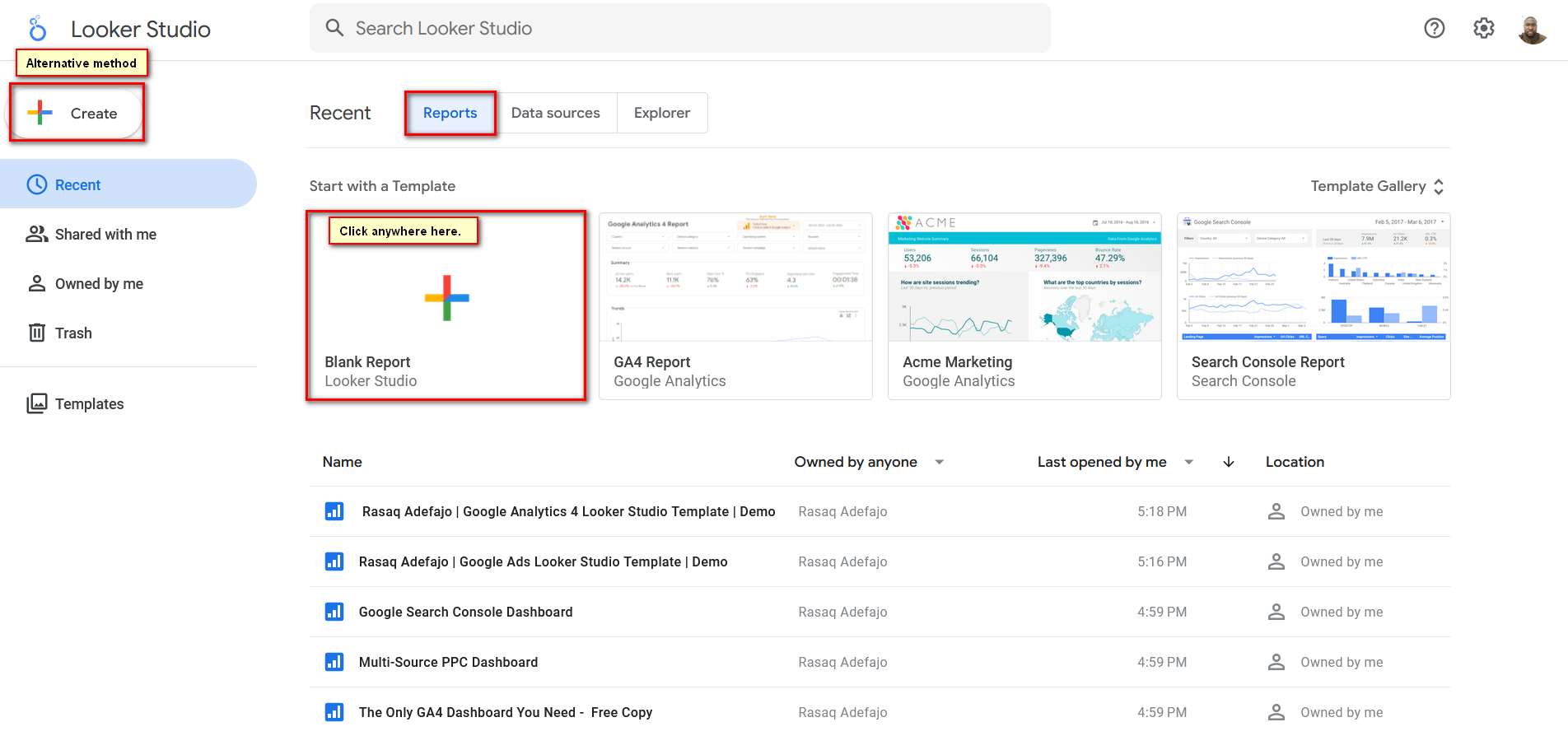
You will land on a page that shows all the dashboards you have created or that have been shared with you.
To integrate GA4 with Data Studio, under the Reports tab, click the plus sign (+) (under it, it says ‘Blank Report’). Alternatively, you can also click on the Create button at the top left corner of the page.
You will be taken to a new report page where you can choose a data source.
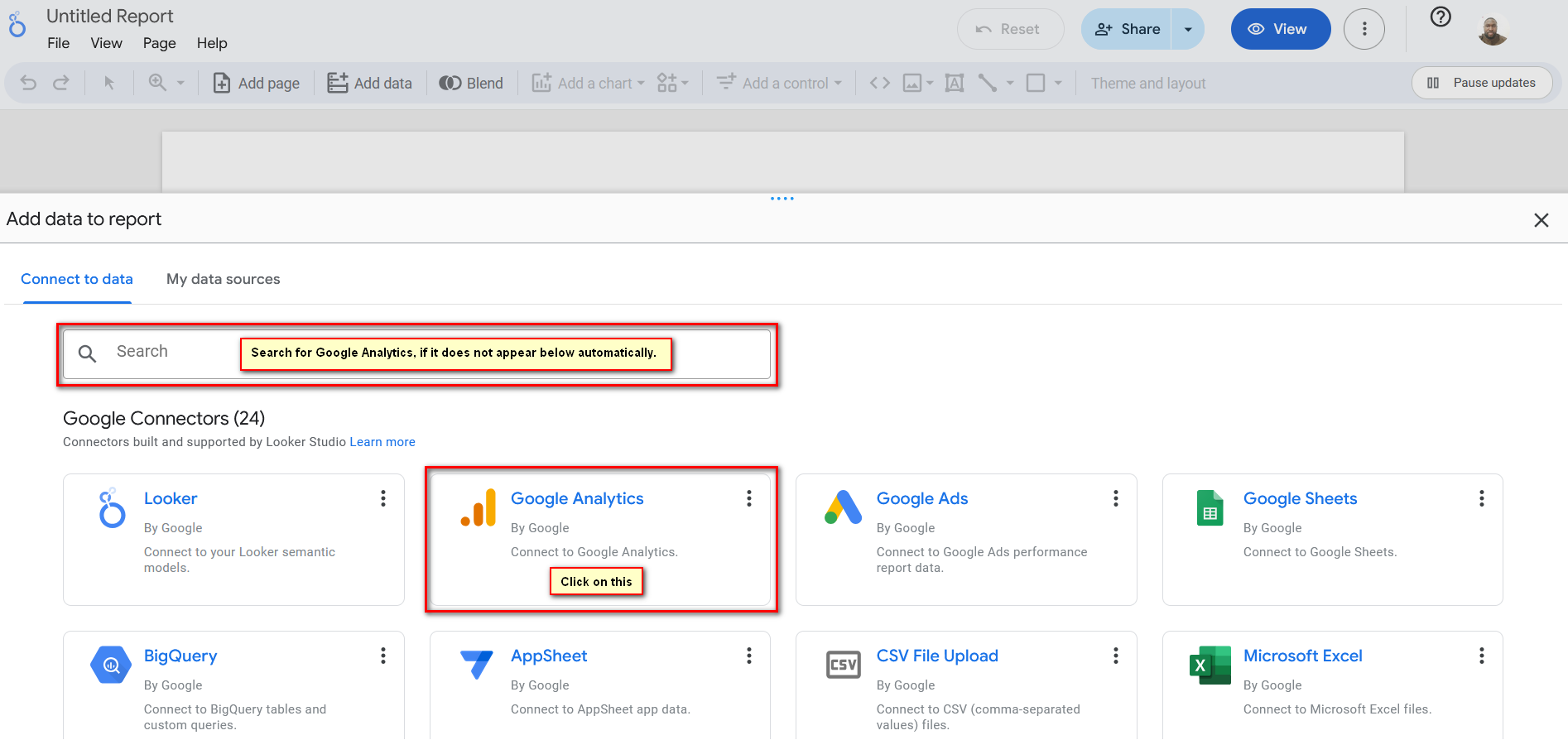
One of the first data sources under ‘Google Connectors’ is Google Analytics. If you did not see it, just search for it.
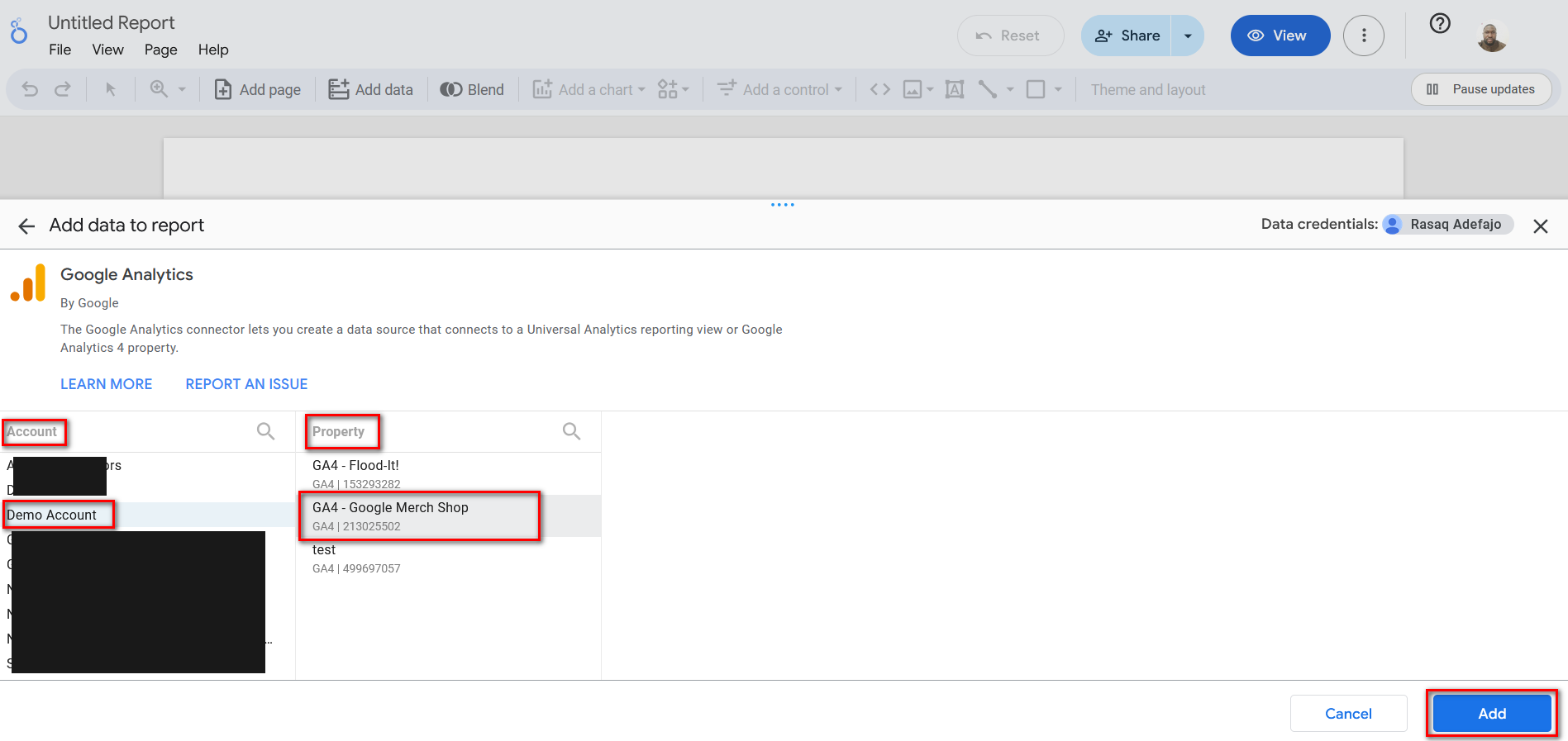
Select the GA4 account and the property you want to connect, and click on the Add button.
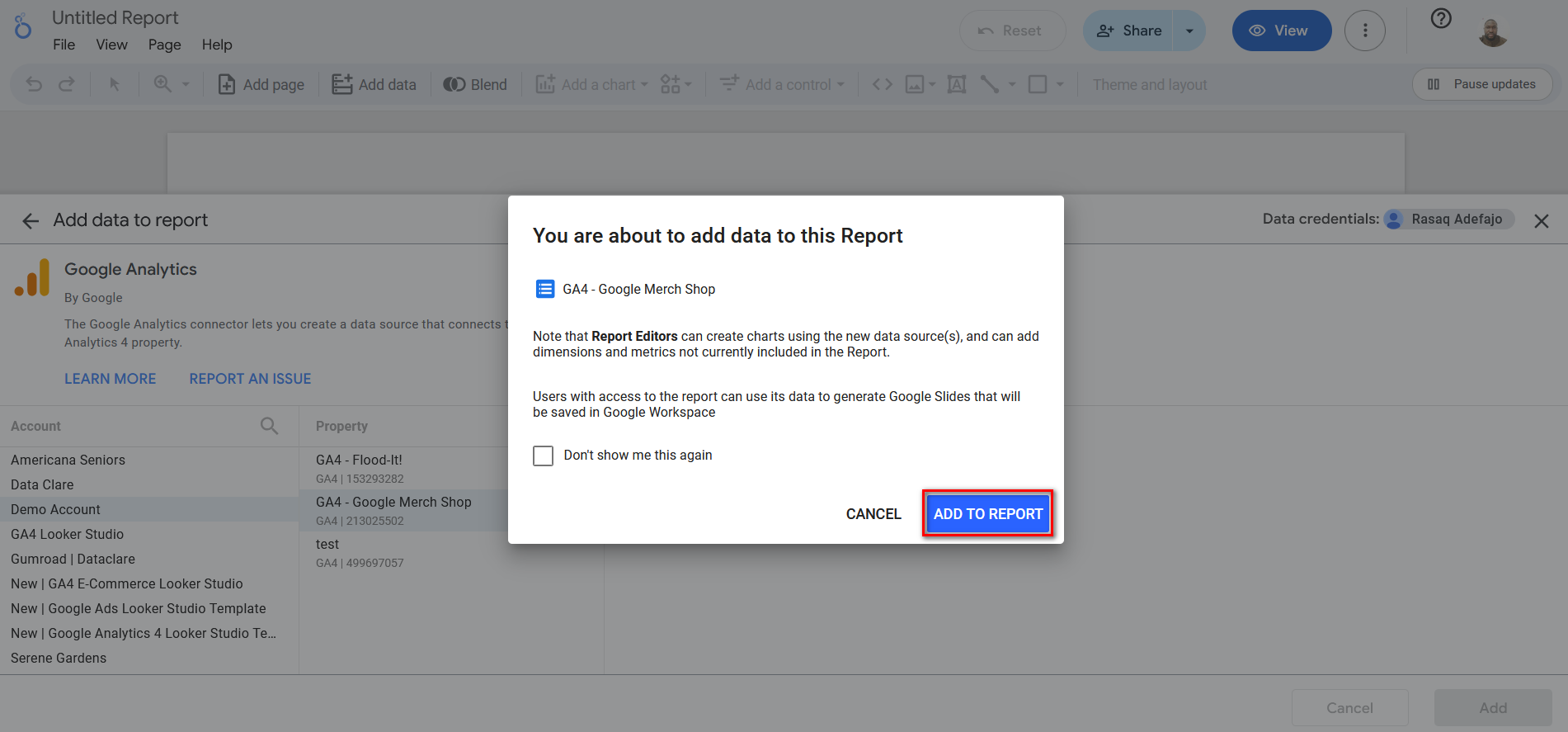
Click on ‘Add to Report’ on the new pop-up window.
Congratulations, you have successfully connected your GA4 property to Data Studio.
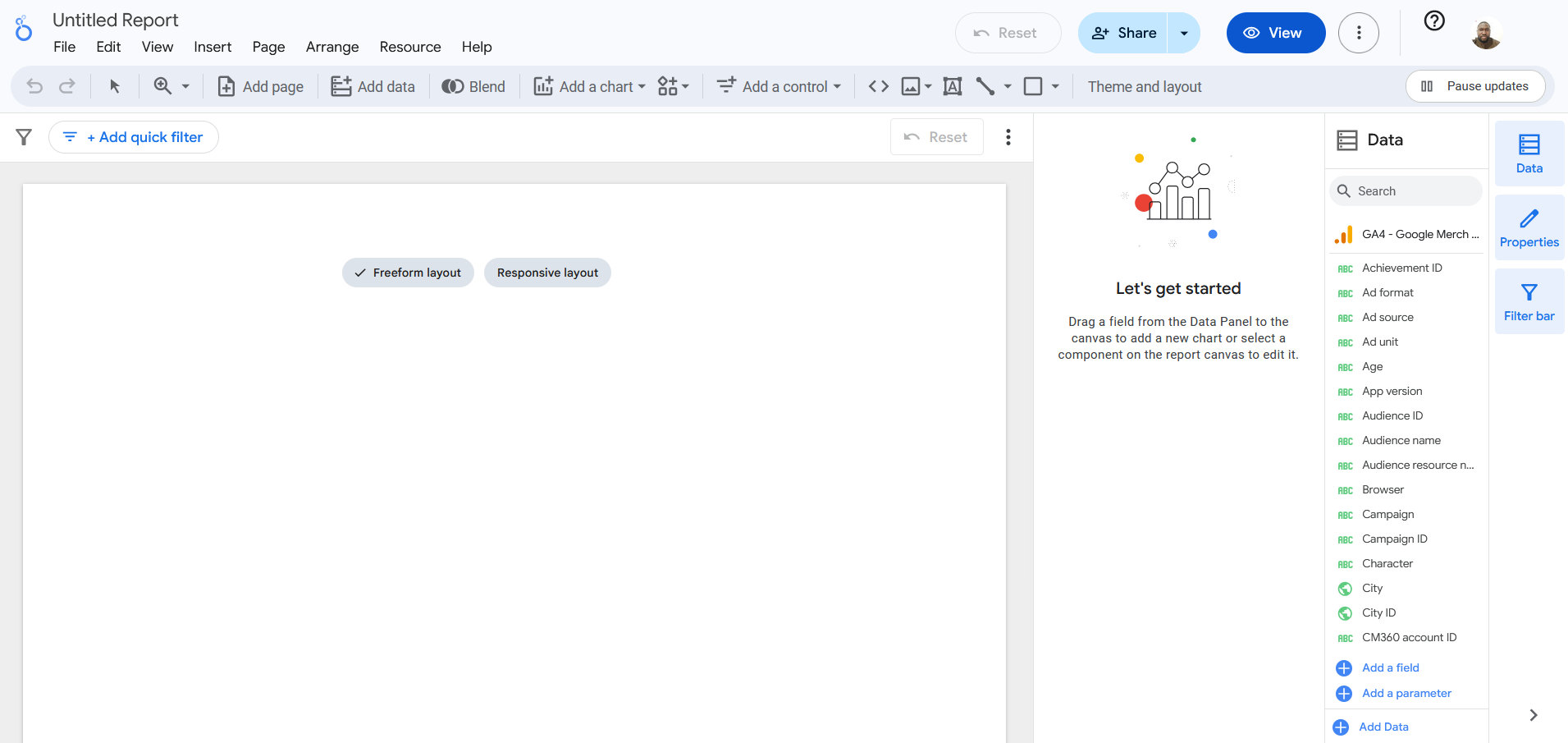
It is time to start building a report. Select if you want to use a freeform layout or a responsive layout.
After that, you can start adding charts to tell the story you want with your dashboard.
Related
Instead of spending 20+ hours building your GA4 report from scratch, get started in about 60 seconds with Data Clare Google Analytics 4 Data Studio template or Our GA4 E-Commerce Data Studio Template.


A Data Studio expert that help e-commerce and marketing teams transform their business data into an actionable Data Studio dashboard that cuts hours of manual reporting and delivers real-time business insights.