
Newly Created Data Studio Reports Are Disappearing: What We Know & Fix

If you’ve recently created a new Data Studio report or data source and noticed it disappear shortly afterward, you’re not alone.
Over the past couple of days, multiple users have reported Data Studio reports disappearing shortly after creation.
I am personally also experiencing this issue at the time of writing.
The issue affects both reports that are newly created from scratch and reports created by making a copy of an existing data studio report or template.
While older reports remain visible and accessible, newly created reports disappear after a short period, making it difficult for users to locate and manage their work.
Data Studio Reports Are Disappearing?
Based on my own personal experience and reports from multiple other users, the issue follows a similar pattern:
- A new report or data source is created.
- Everything appears to work normally at first.
- After some time, the report or data source disappears.
- Reports created by copying an existing report (templates) are also affected.
Importantly, the reports are not deleted.
While the missing reports are not visible in the Data Studio workspace and are also not found in the Trash section.
In all cases observed so far, the reports can still be accessed directly if the report URL is known.
Data Studio Team Is Investigating
The issue has been acknowledged by the Data Studio team.
In response to a forum thread discussing missing reports, Google staff member Maaz posted the following update:
“Hi all,
The Data Studio team is currently looking into this. Please stay tuned.
~Maaz”
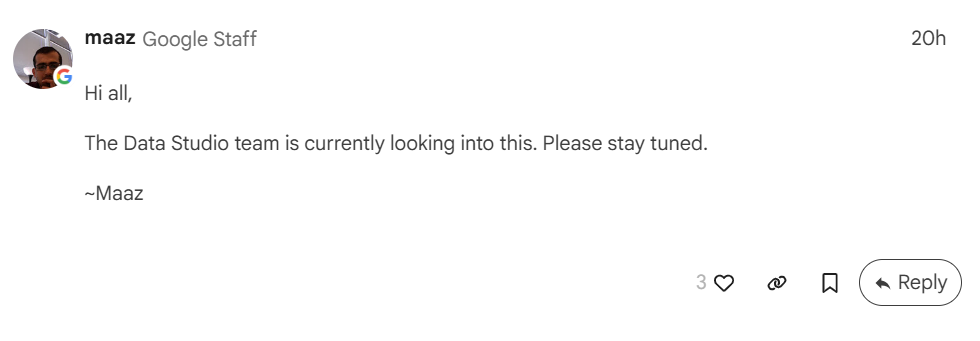
While no estimated resolution date has been provided, the response confirms that the team is aware of the issue and actively investigating it.
Temporary Fix for Missing Data Studio Reports
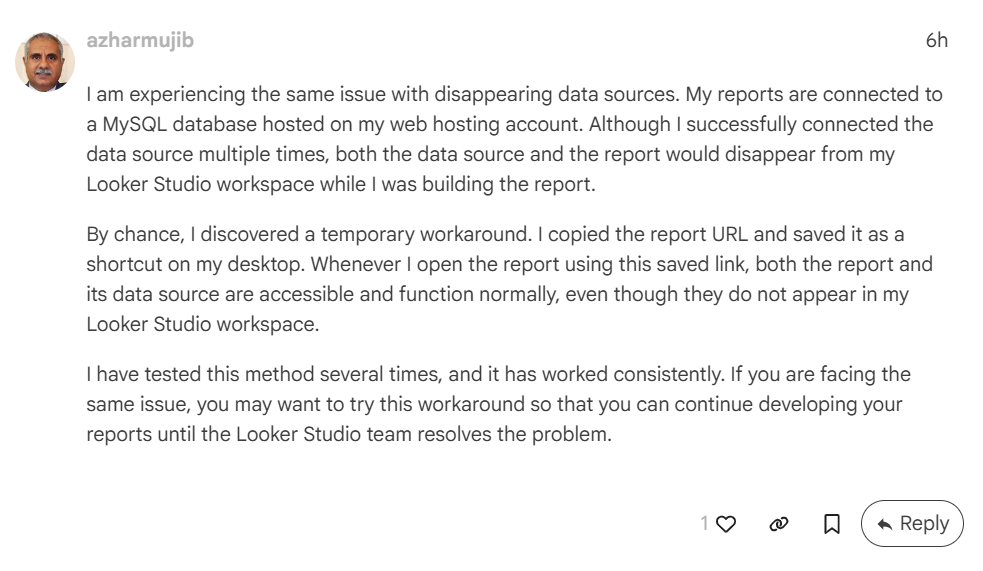
A temporary workaround was shared by forum member azharmujib, and I can confirm it works.
If you create a new report, immediately copy and save the report URL.
Even if the report later disappears from your Data Studio workspace, you will still be able to access it directly using its URL.
This can help prevent delays while the Data Studio team work on a resolution.
Steps
- Create your report as usual.
- Open the report.
- Copy the report URL.
- Paste the URL somewhere safe.
- Use the URL to access the report if it later disappears from your workspace or Data Studio report page.
What You Should Do Right Now
Until the issue is resolved:
- Save the URL of every newly created report, including reports created from templates.
- If a report has already disappeared, check your browser history (CTRL + H in Chrome) to locate the report URL.
- Do not assume a missing report has been deleted simply because it no longer appears in your workspace.
- Check the Data Studio developer forum thread linked above for updates from the team.
- Inform teammates and clients who may be creating reports during this period.
Recent System Errors May Be Related
This Data Studio report disappearing issue comes shortly after many users experienced another widespread problem affecting Data Studio reports.
Over the past few days until noon yesterday, Affected users were seeing the error:
“Looker Studio has encountered a system error”
Clicking the error details revealed the message:
Under normal circumstances, this message is commonly associated with Google Analytics 4 API quota limitations.
However, users reported experiencing the same error even when using BigQuery-connected data sources, which are not subject to GA4 API quotas.
Because the issue appeared across different connection methods, it suggests the problem may have been broader than a typical quota limitation.
At the time of writing, this particular issue has been resolved.
Final Thoughts
Data Studio users have experienced multiple platform issues in recent days, including Data Studio reports disappearing from workspaces that is affecting report access.
The good news is that the Data Studio team has acknowledged the issue and is actively investigating it.
Until a fix is released, the safest approach is to copy and save the URL of every newly created report.
Doing so will allow you to continue accessing your reports even if they disappear from your workspace or report page.
Update – Issue Resolved
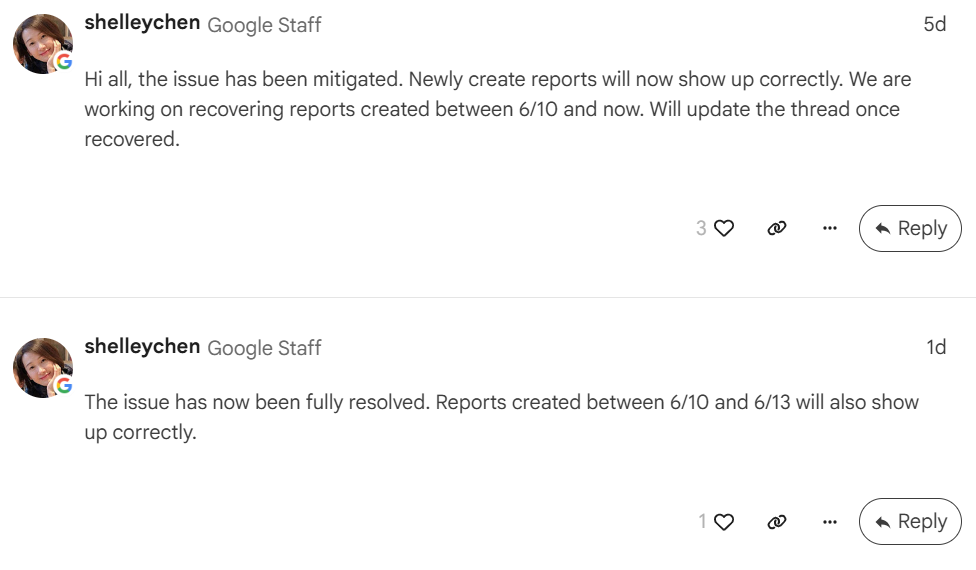
As of June 16, 2026, the issue of newly created data sources and reports in Data Studio disappearing has been resolved.


A Data Studio expert that help e-commerce and marketing teams transform their business data into an actionable Data Studio dashboard that cuts hours of manual reporting and delivers real-time business insights.